
“How I turned my MacBook into a voice memo transcription machine using open-source AI, iCloud sync, and a few shell scripts.”
This is a pre-requisite of a larger project to use MCP server to make magic out of the transcriptions, but more on that later…
🧫 Why This Project?
I use Apple’s Voice Memo app constantly. I spit out ideas while driving, quick notes during walks, spiritual downloads from the multi-verse, spontaneous rants — they all land in the Voice Memos app on my iPhone. But they pile up. I needed a way to:
- Automatically transcribe them
- Organize them by date
- Keep everything local (no 3rd-party apps)
- Eventually sync them to the cloud (my way)
This is Part 1 of how I built that pipeline.
🛠️ My Setup
- Machine: 13-inch MacBook Air (1.1 GHz Quad-Core Intel Core i5, 16 GB RAM)
- macOS: 15.3.2 (24D81)
- Python: 3.10 via Homebrew
- Voice Memos App: iCloud enabled
- Tools: Whisper (OpenAI), ffmpeg, Automator, AWS CLI, Bash
🌟 Goal
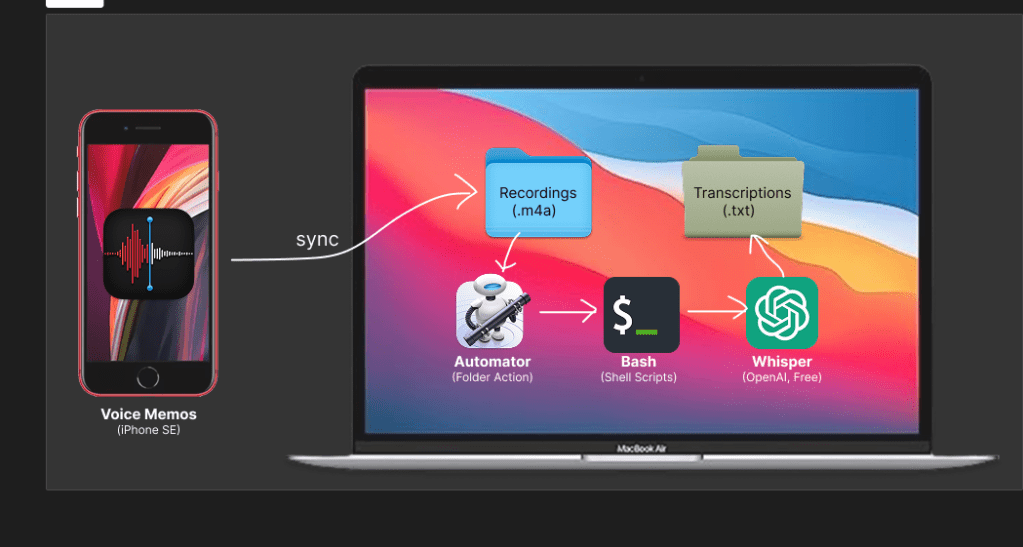
Any time I record a voice memo on my iPhone:
- It syncs to my Mac via iCloud
- A background process detects the new
.m4afile - It transcribes it with Whisper
- The
.txttranscript is saved to a folder - A second process uploads it to an S3 bucket, organized by date
🔄 Step-by-Step Breakdown
This architecture uses three separate Automator Folder Actions, each with a clear, modular role in the overall pipeline. This separation allows for easier debugging, more flexibility in automation scope, and future expansion.
🤩 Workflow 1: Voice Memo Sync (iCloud → Local Folder)
- Trigger: None (handled automatically by iCloud)
- Action: The native Voice Memos app syncs
.m4afiles to:~/Library/Group Containers/group.com.apple.VoiceMemos.shared/Recordings/ - Goal: Make sure memos land here without user intervention.
- Note: We used
Cmd + Shift + Gin Finder and manually navigated to this hidden path. This is the watchpoint for Workflow 2.
🤩 Workflow 2: Transcription Folder Action (m4a → txt)
- Trigger Folder:
~/Library/Group Containers/group.com.apple.VoiceMemos.shared/Recordings - Tool Used: Automator Folder Action
- Script Summary:
- Uses a Python virtual environment with Whisper and ffmpeg
- Detects new
.m4afiles - Transcribes them into
.txtfiles using Whisper - Saves output in
~/VoiceMemoTranscripts - Appends logs with timestamps to
~/automator_debug.logand~/automator_error.log
This workflow is the core of the automation, converting audio into readable text without needing to manually invoke Whisper or upload files manually.
🤩 Workflow 3: Upload Folder Action (txt → S3)
- Trigger Folder:
~/VoiceMemoTranscripts - Tool Used: Automator Folder Action
- Script Summary:
- Watches for new
.txttranscripts - Extracts the creation date using
stat - Constructs an S3 key with the format:
transcripts/YYYY-MM-DD/filename.txt - Uploads the transcript to:
s3://macbook-transcriptions/transcripts/... - Appends logs to
~/transcript_upload.log
- Watches for new
This third action makes sure that every transcribed memo is securely backed up to the cloud, organized by date, and ready for future search/indexing use cases.
Do it yourself! Here are the steps I followed:
1. Enable Voice Memos Sync to iCloud
- On iPhone: Settings > Apple ID > iCloud > Voice Memos → ON
- On Mac: Open Voice Memos app once
- The files land in:
~/Library/Group Containers/group.com.apple.VoiceMemos.shared/Recordings/
To locate it via Terminal:
open "~/Library/Group Containers/group.com.apple.VoiceMemos.shared/Recordings"
2. Install Whisper + ffmpeg in a Virtual Environment
Whisper relies on PyTorch and ffmpeg. System Python won’t cut it, so we create a clean env:
brew install python@3.10 ffmpeg
/usr/local/bin/python3.10 -m venv ~/.voice-transcriber-env
source ~/.voice-transcriber-env/bin/activate
pip install --upgrade pip
pip install git+https://github.com/openai/whisper.git
pip install "numpy<2"  # required to fix torch compatibility
3. Create Automator Folder Action for Transcription
Open Automator → New → Folder Action:
- Folder:
~/Library/Group Containers/group.com.apple.VoiceMemos.shared/Recordings - Add: “Run Shell Script”
- Pass input:
as arguments
Script:
#!/bin/bash

export PATH="/usr/local/bin:/opt/homebrew/bin:/usr/bin:/bin:/usr/sbin:/sbin"
export PYTHONWARNINGS="ignore::UserWarning"

OUTPUT_DIR="$HOME/VoiceMemoTranscripts"
WHISPER_BIN="$HOME/.voice-transcriber-env/bin/whisper"

mkdir -p "$OUTPUT_DIR"

for f in "$@"
do
  if [[ "$f" == *.m4a ]]; then
    echo "Transcribing: $f" >> ~/automator_debug.log

    {
      echo "===== $(date '+%Y-%m-%d %H:%M:%S') — BEGIN TRANSCRIPTION: $f ====="
      "$WHISPER_BIN" "$f" \
        --language en \
        --output_dir "$OUTPUT_DIR" \
        --output_format txt
      echo "===== $(date '+%Y-%m-%d %H:%M:%S') — END ====="

      # Upload transcript to S3
      CREATED_DATE=$(stat -f "%SB" -t "%Y-%m-%d" "$f")
      KEY_NAME="$(basename "$f" .m4a).txt"
      S3_KEY="transcripts/$CREATED_DATE/$KEY_NAME"
      aws s3 cp "$OUTPUT_DIR/$KEY_NAME" "s3://macbook-transcriptions/$S3_KEY"
    } >> ~/automator_error.log 2>&1
  fi

done
This triggers whenever a new .m4a lands. It logs each run, ignores non-audio files, and avoids blocking on warnings.
4. Test It
- Record a voice memo on your iPhone
- Within ~30s, check:
~/VoiceMemoTranscripts/for a.txtfile~/automator_debug.logand~/automator_error.logfor confirmation- S3 bucket
s3://macbook-transcriptions/transcripts/YYYY-MM-DD/filename.txt
📌 Reference
See TRANSCRIBER.md and AUTOMATOR.md in the repo for full setup instructions, shell script, and troubleshooting notes.
🔪 Why This Is Better Than Off-the-Shelf Apps
| Option | Pros | Cons |
|---|---|---|
| My Setup | Private, local, free, extensible | Manual setup, shell knowledge needed |
| Otter.ai / Rev | Fast, convenient | Uploads everything to a 3rd party |
| Apple Notes (Siri) | Built-in | No batch processing or archive. |
🧠 Lessons So Far
- Automator can be powerful if you understand its quirks
- Whisper works great locally on CPU with FP32
- Most pain came from missing
ffmpeg, PATH issues, or NumPy mismatches - This MacBook Air handled the 1.5GB model just fine (2–3 mins per transcription)
- Integrating with S3 gives you a simple, secure backup
⚠️ Limitations & Gotchas
- Folder Actions only trigger when your Mac is awake — so memos recorded while your laptop is closed won’t get processed until next boot
- Automator is invisible — failures happen silently unless you check your logs
- Performance is modest — each transcription takes 2–3 minutes on a dual-core CPU
- No deduplication — re-saving or re-syncing a memo can trigger multiple runs unless you build guardrails
- No GPU support — Whisper uses FP32 mode only on CPU (which is fine for short files)
- IAM keys required for AWS CLI — be sure to secure them properly if you share this machine
- Automator Folder Actions are event-based — meaning they rely on Finder-level events, which may not fire in certain contexts (e.g., copying via
cp, background syncs if user session isn’t active, fast reboots) - No retry mechanism — failures in upload/transcription won’t retry unless manually rerun
📘 Part 2 Coming Soon
- Agentic archiecture
- Decision-logic and quality gates
- Integrations with other tooling
Stay tuned.
 fordprior.com